myAimsun Admin
myAimsun Admin is the dedicated portal for system administrators (Admins) to manage Aimsun products, subscriptions, and users for one or more accounts in their organization.
To register your organization in myAimsun for the first time, contact info@aimsun.com and provide the following details for the primary Administrator:
- First Name
- Last Name
- Email Address
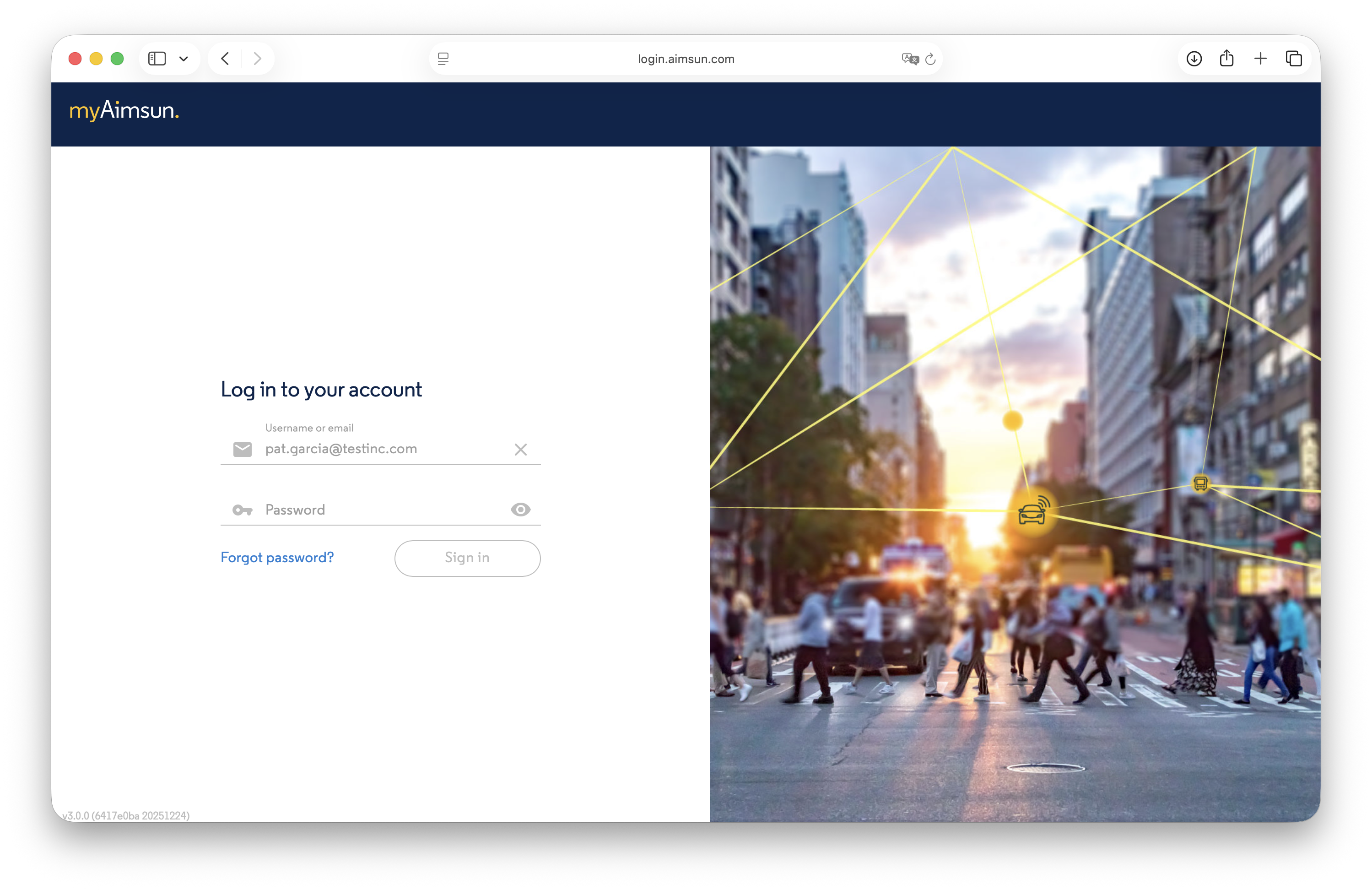
Login
Aimsun will send the designated Admin an email with the initial login credentials. Use them to access the myAimsun Admin portal.
Admin scope across multiple accounts
By default an Admin manages the account that their own contact belongs to. Aimsun staff (or a Super Admin in your organization — see Grants) can extend that scope by granting the Admin authority over additional accounts in your corporate hierarchy.
When an Admin has more than one account in scope, every page that lists users or subscriptions includes an Account filter. Use it to focus on one account or leave it empty to see everything across the in-scope accounts.
User Management
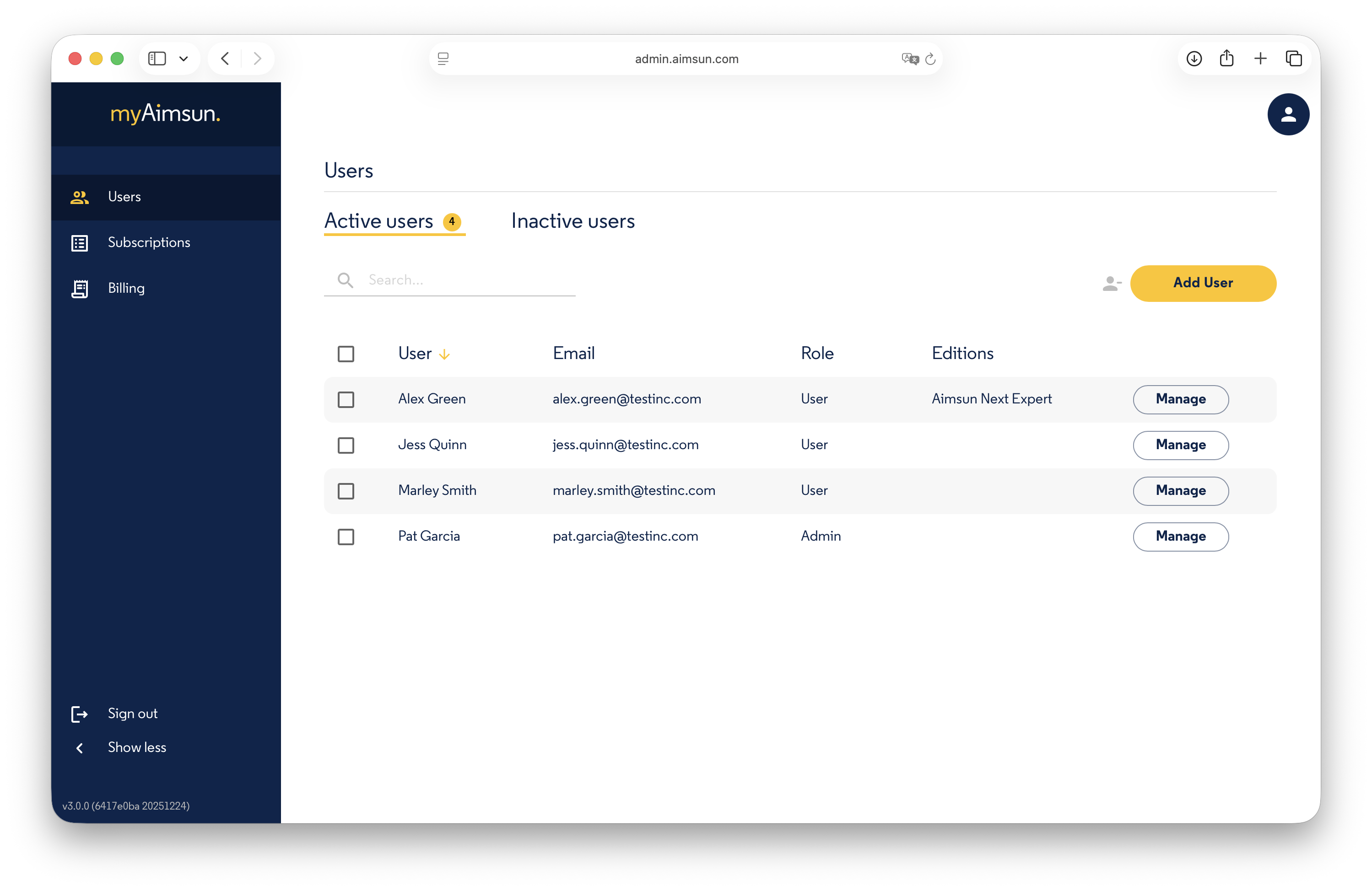
The Users section allows Admins to edit profiles, activate or deactivate users, and manage seat1 assignments. Only Active users can log into the myAimsun portal and use assigned seats.
The user list displays names, email addresses, the user's account (when more than one is in scope), role, and currently assigned seats.
Roles
Each person is assigned exactly one of the following roles:
- User: Access assigned seats and general services (Doc Hub, User Forum). No access to billing information or admin portals.
- Billing: Exclusive access to billing and account information.
- Admin: Full administrative rights. Admins can manage software, services, billing, and user access levels for every account in their scope.
Only Admins can change roles for other users and fellow Admins.
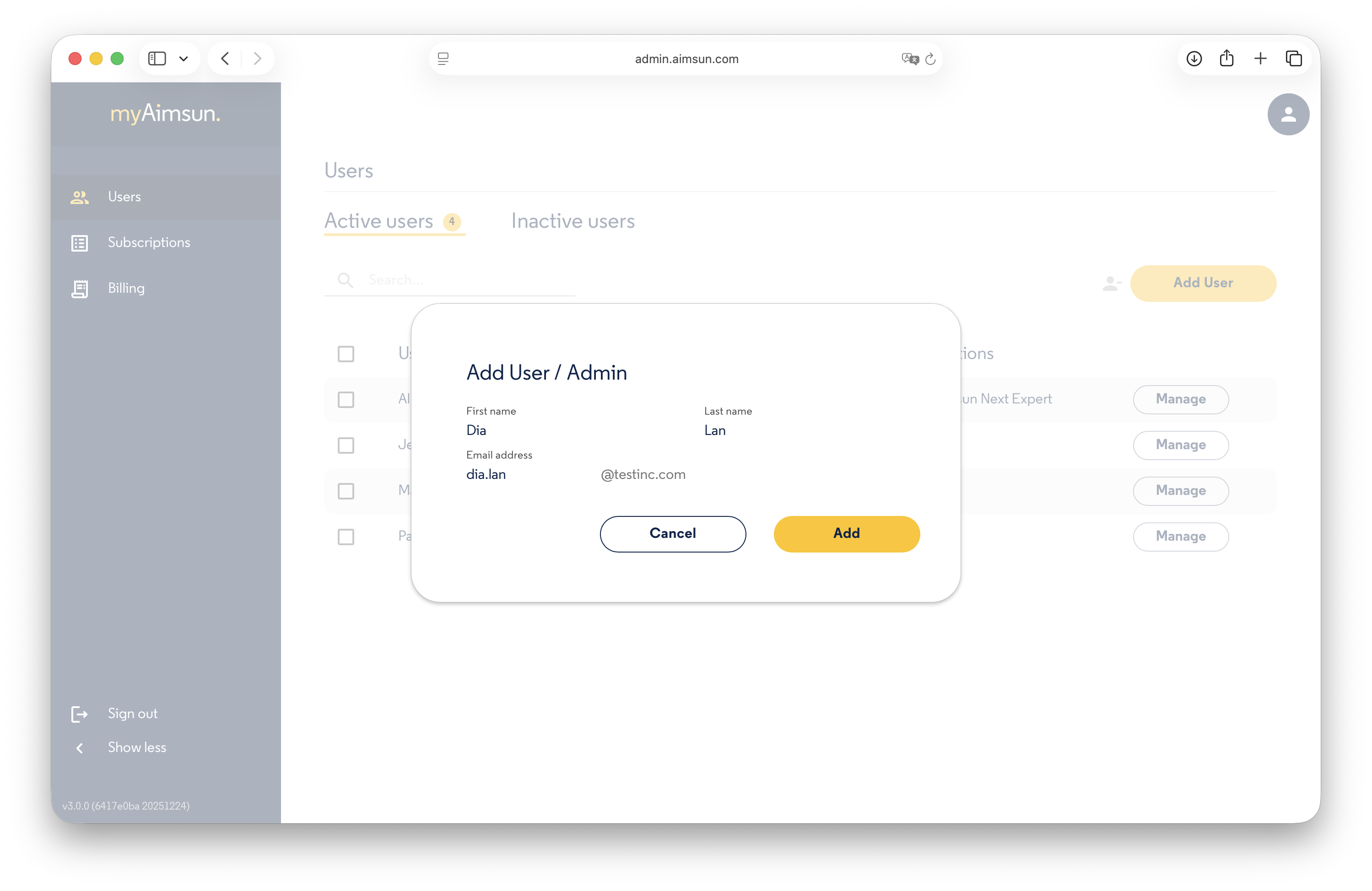
Add a User
Admins can add new users to any account in their scope, subject to the following restrictions:
- The email address must be unique across the organization.
- The email domain must be pre-registered with Aimsun for that account.
If you need to register additional email domains, contact Aimsun at info@aimsun.com.
Deactivate a User
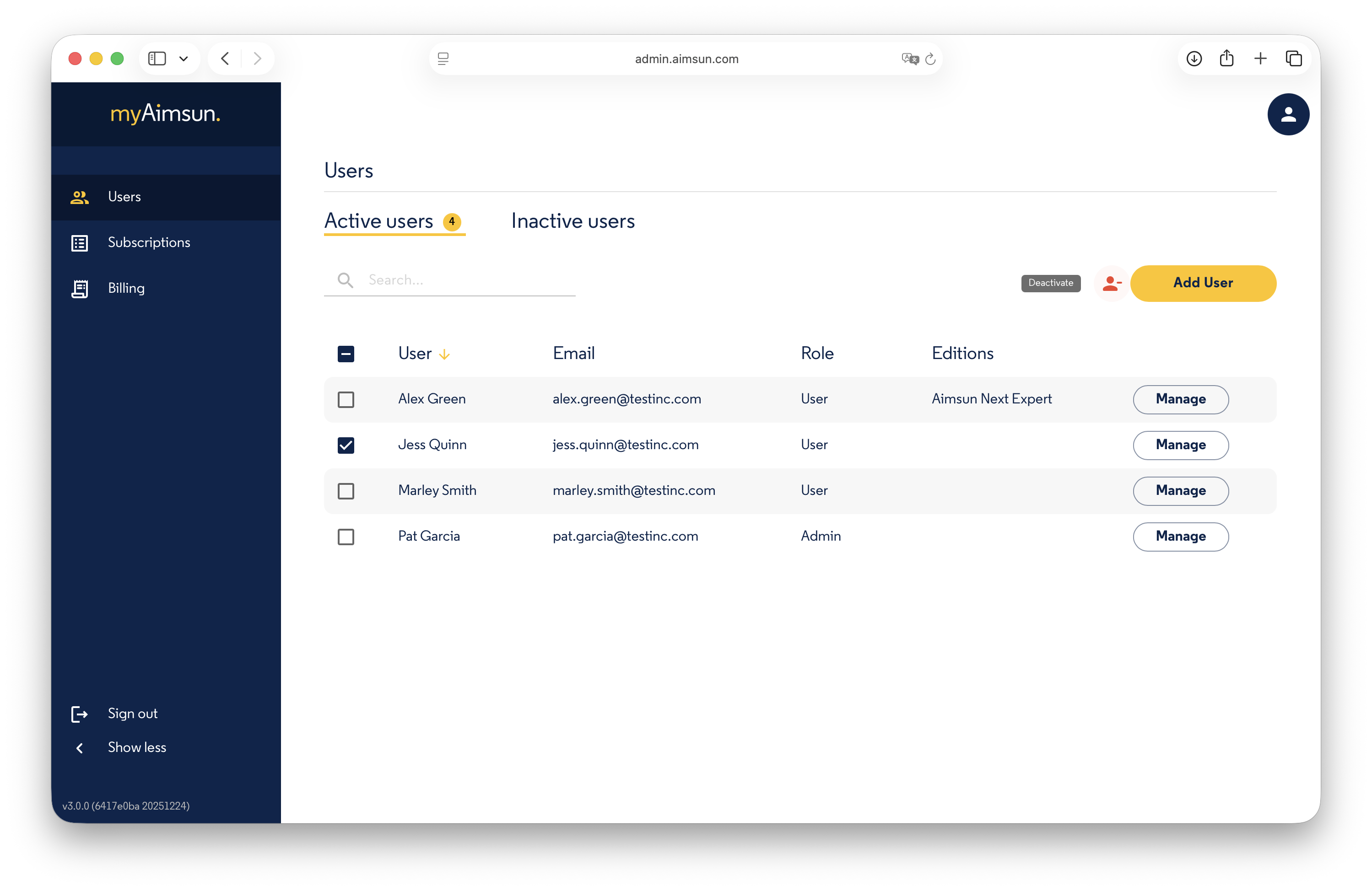
To deactivate a user, check the box next to their name and click the Deactivate button. Deactivated users lose access to the portal and to their assigned seats.
Note: Deactivating a user does not immediately release the activations installed on their computers. Each activation stays valid until its license expires — up to the subscription's detach duration (30 days by default, but configurable per subscription). See the Aimsun Licenser manual for details. Deactivation is intended for users leaving the organization, not for temporary seat management.
Reactivate a User
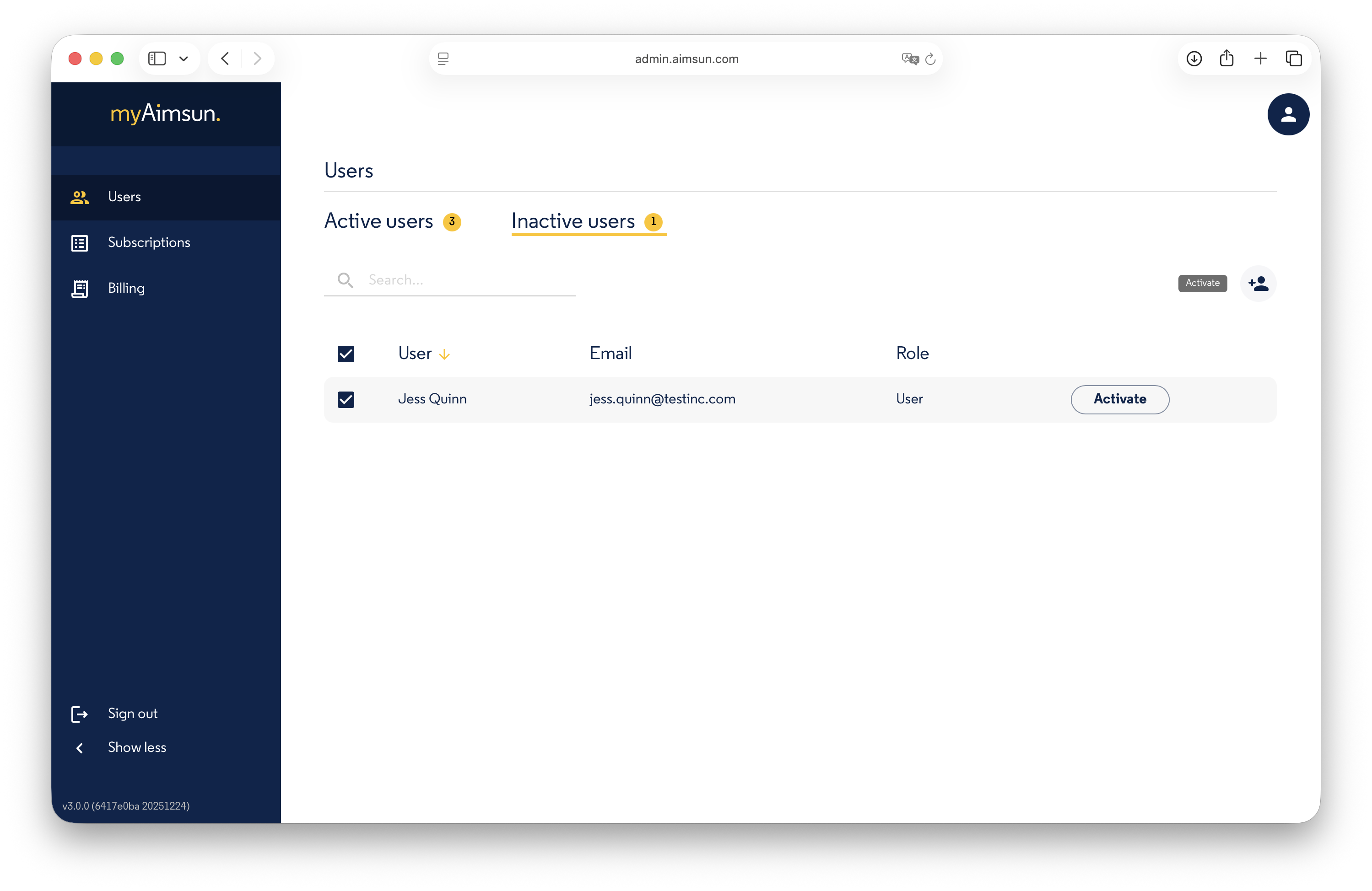
To reactivate a user, switch to the Inactive users tab, select the user, and click the Activate button.
Edit a User Profile
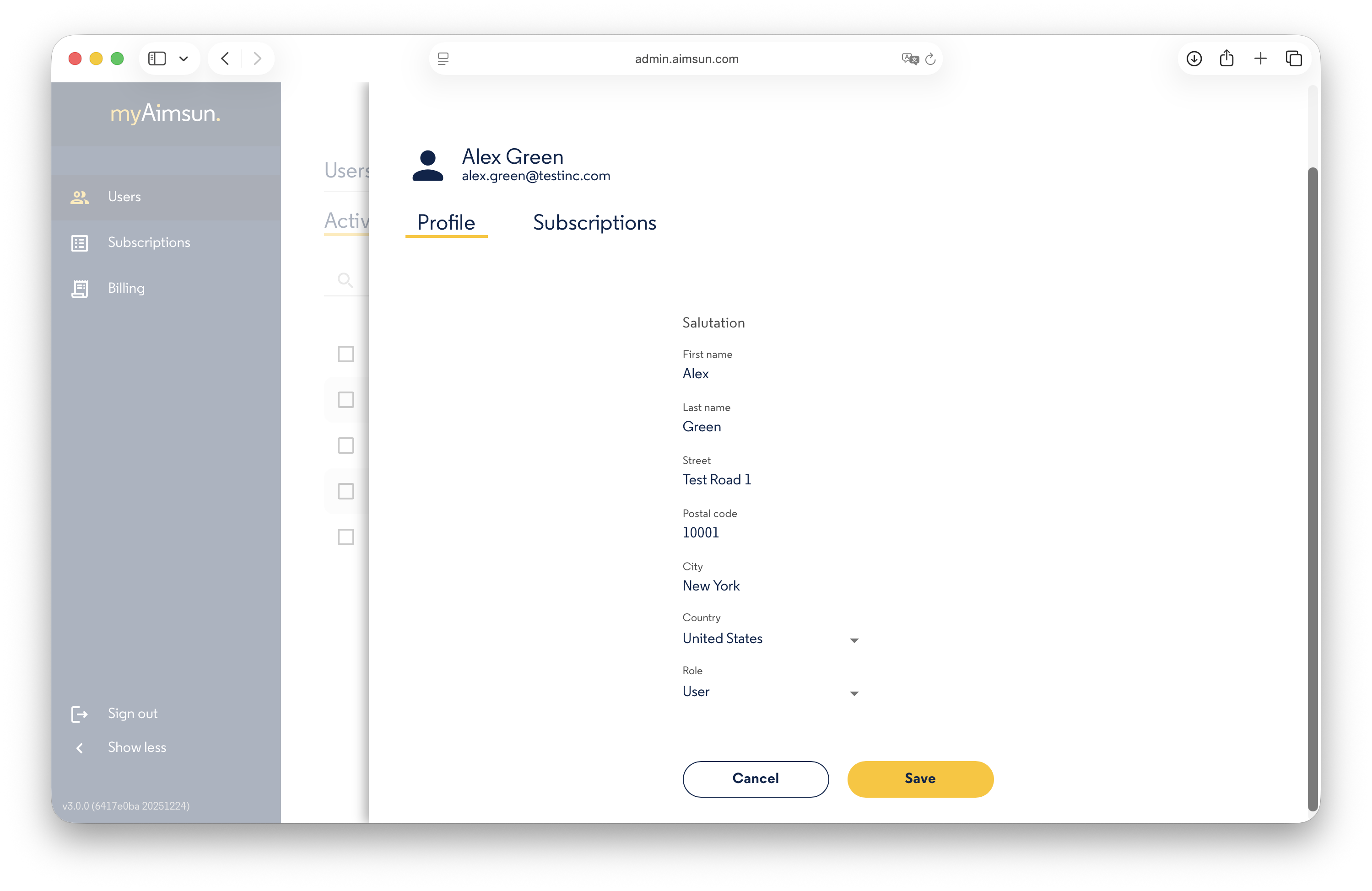
Click the Manage button to access a specific user's profile. You can modify:
- Salutation
- First Name
- Last Name
- Address
- Role
Note: Email addresses cannot be edited. To modify a user's email, contact info@aimsun.com.
Subscriptions
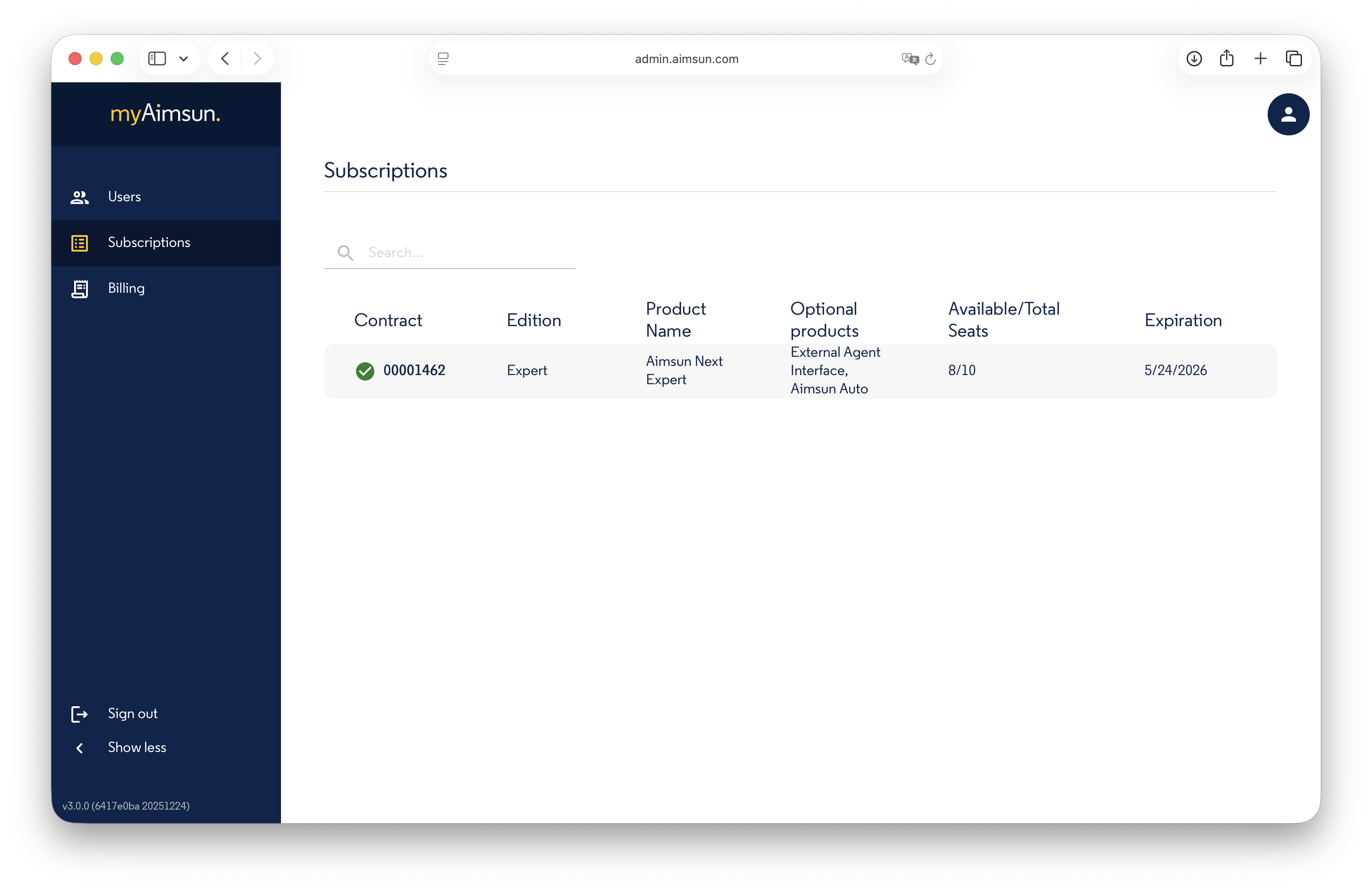
The Subscriptions section displays the subscriptions visible to the Admin, split across two tabs:
- Owned — subscriptions your accounts own, plus subscriptions that a distributor sold to your accounts. These are the subscriptions whose seats you assign and unassign.
- Sold — subscriptions your accounts own but resold to a third-party customer (distributor view). These are read-only here; the buyer's admins manage the seats.
The Sold tab is hidden when there are no resold subscriptions. Each tab shows a counter with the number of subscriptions currently matching the filter.
Status filter
The toolbar of each tab carries a Status multi-select with three buckets:
- Active — not expired and more than 90 days from expiration.
- Expiring — not expired and 90 days or less from expiration.
- Expired — past their expiration date.
By default only Active is selected. Leave the selection empty to show every subscription. The filter is shared across the two tabs.
Owned subscriptions
For each subscription line the Owned tab shows: Contract name, Subscription Name (when more than one line exists), Edition, Product, optional Products, Available / Total Seats, and Expiration.
Sold subscriptions
For each subscription line the Sold tab shows: Contract name, Subscription Name, Sold to (buyer Account name), Edition, Product, optional Products, Total Seats, and Expiration. The used / available split is not shown — the buyer's admins decide how their seats are allocated.
Assign and Unassign Seats
To run Aimsun Next mobility modeling software, a user must hold a seat2. Seats can be assigned from any subscription in the Owned tab while seats remain available.
To assign a seat:
- Go to the Active Users list.
- Click
Managenext to the user's name. - Open the
Subscriptionstab. - Select the number of seats and click
Assign.
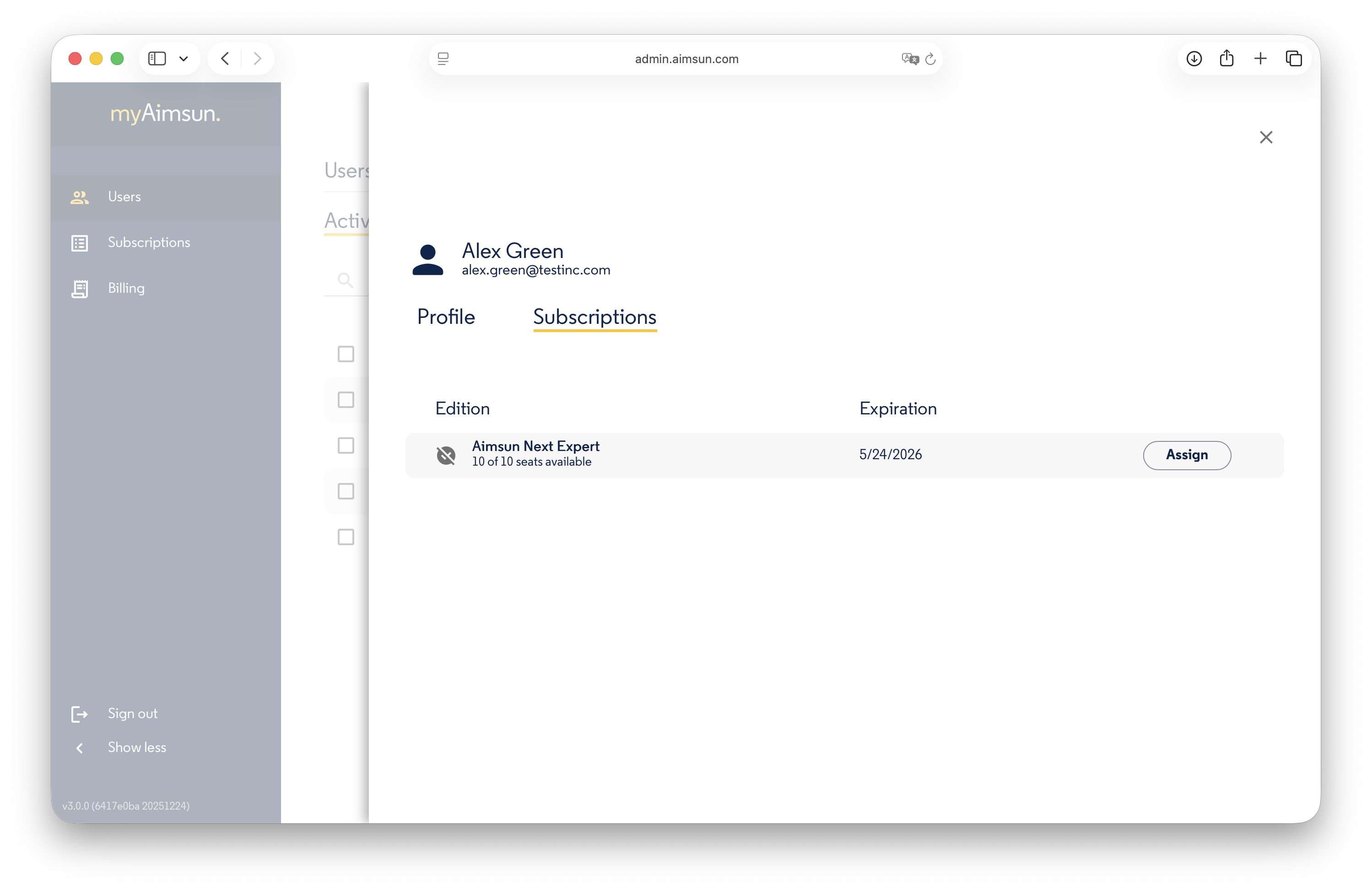
To unassign a seat: click Unassign in the same menu.
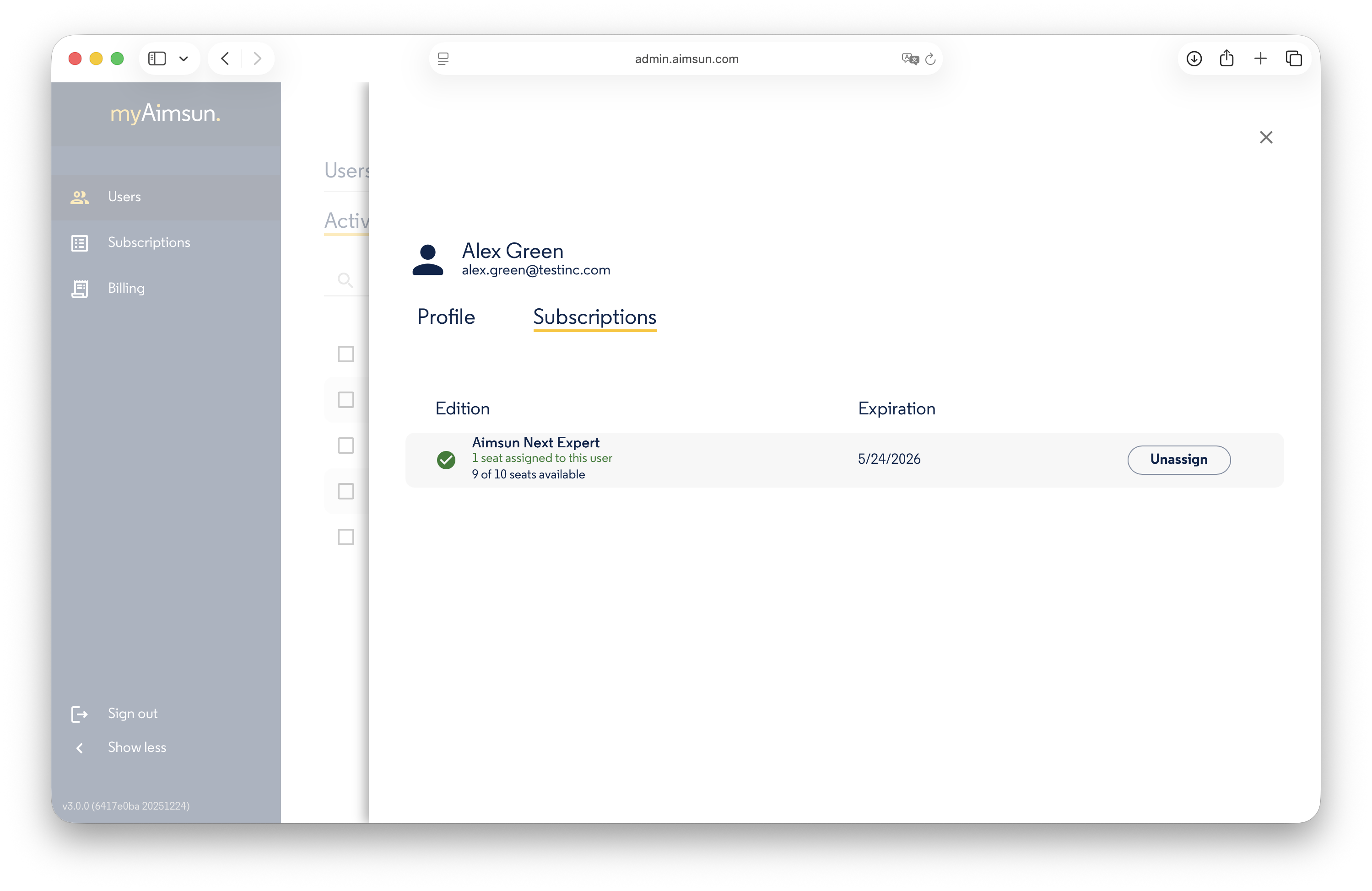
Once a seat is assigned, the user can license3 their computer with the Aimsun Licenser (downloadable from my.aimsun.com/downloads).
Important: If a user already activated a seat on a computer, the Admin cannot unassign that seat until the user releases it through the Licenser, until the license expires (default 30 days, configurable per subscription), or — when the local machine state is broken — until the user requests a grace activation that releases the orphan.
Password Management
Admins cannot view, change, or force a password reset for users. Users manage their own passwords through the myAimsun portal.
Billing
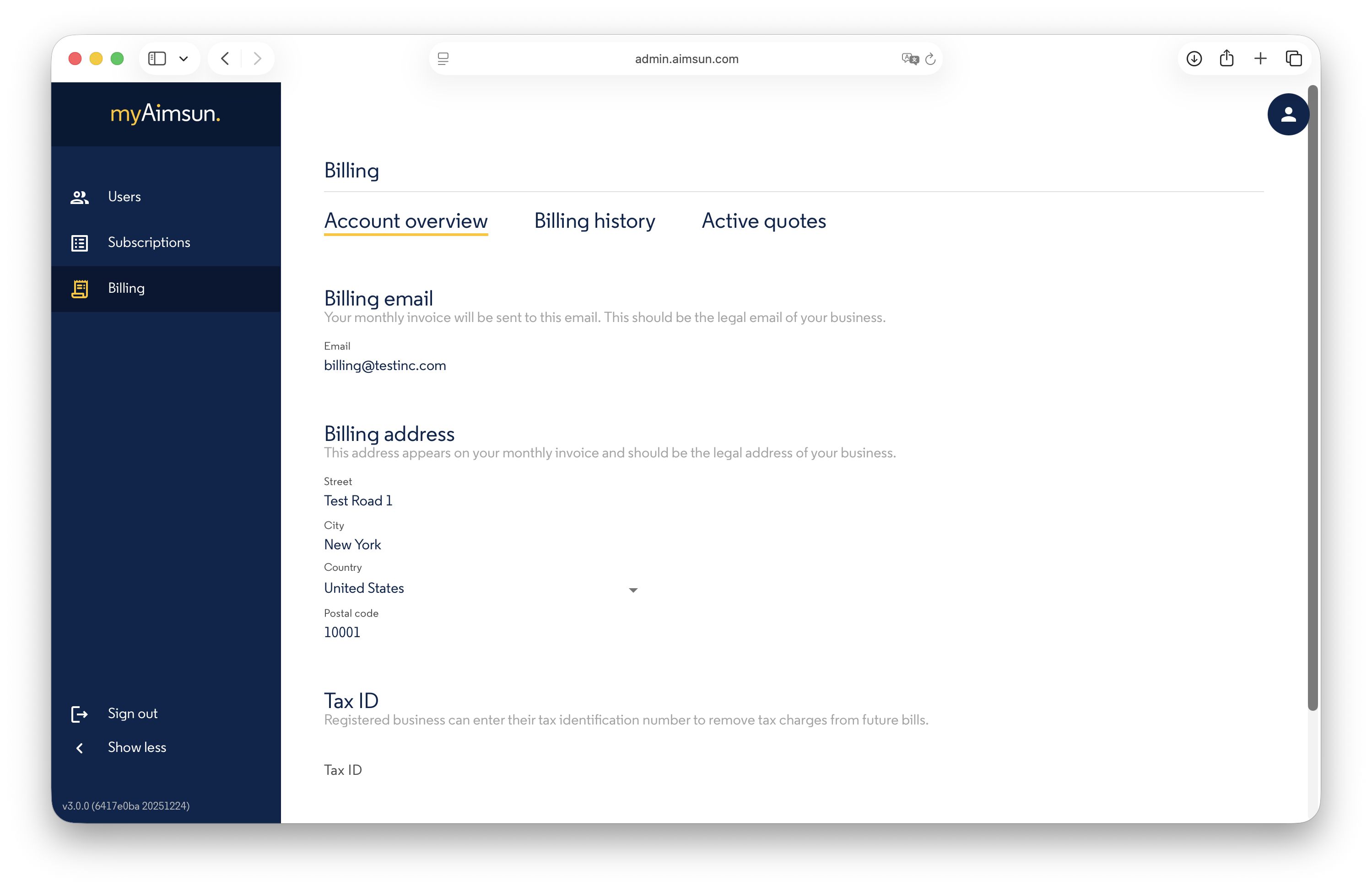
Users with the Admin or Billing role can access an account's financial data. Use the Account overview to update the billing contact email, physical address, and Tax ID.
When multiple accounts are in scope, the Billing page lets you choose which account to view.
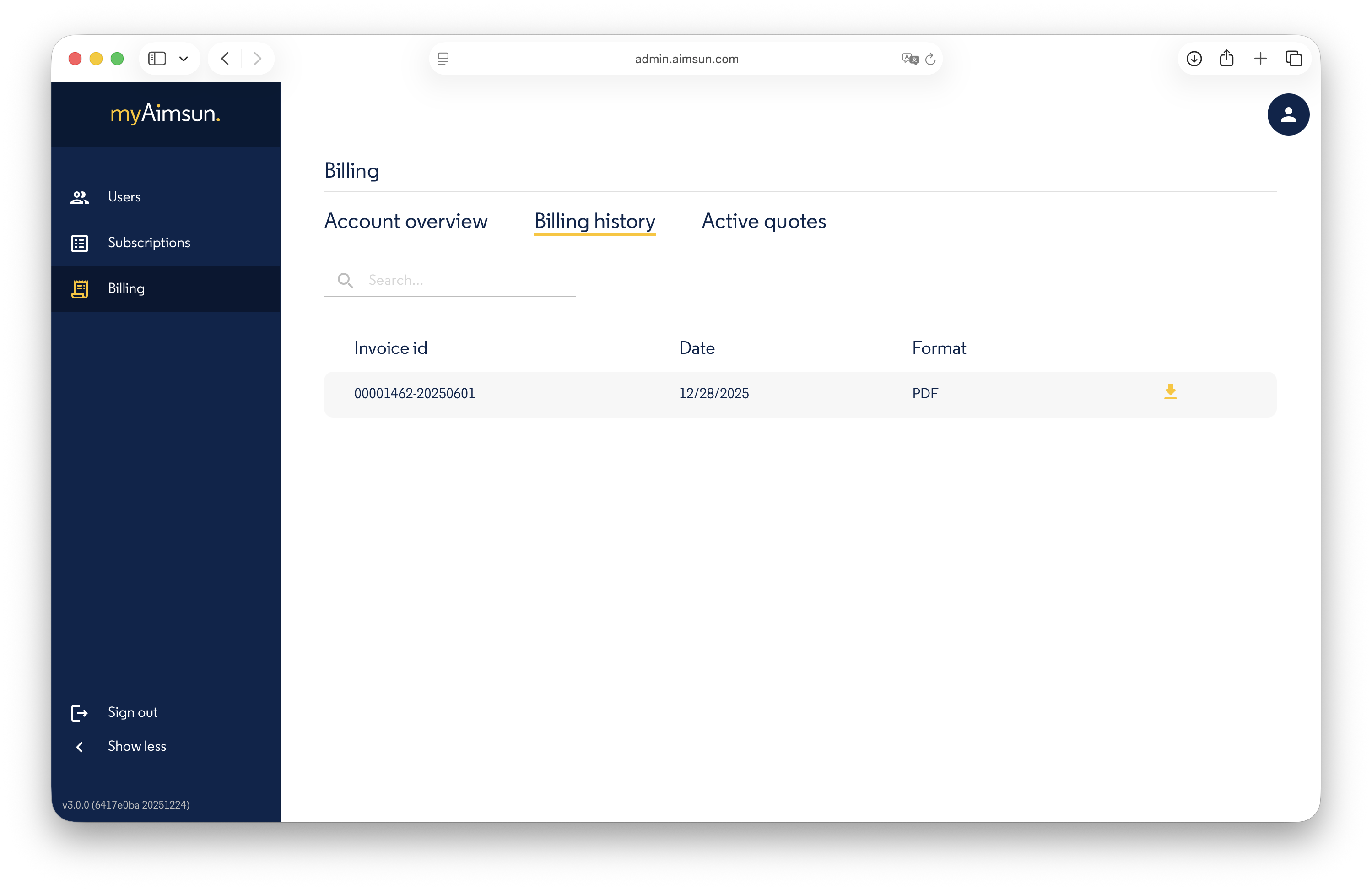
Billing History
A list of all generated invoices, downloadable as PDF documents.
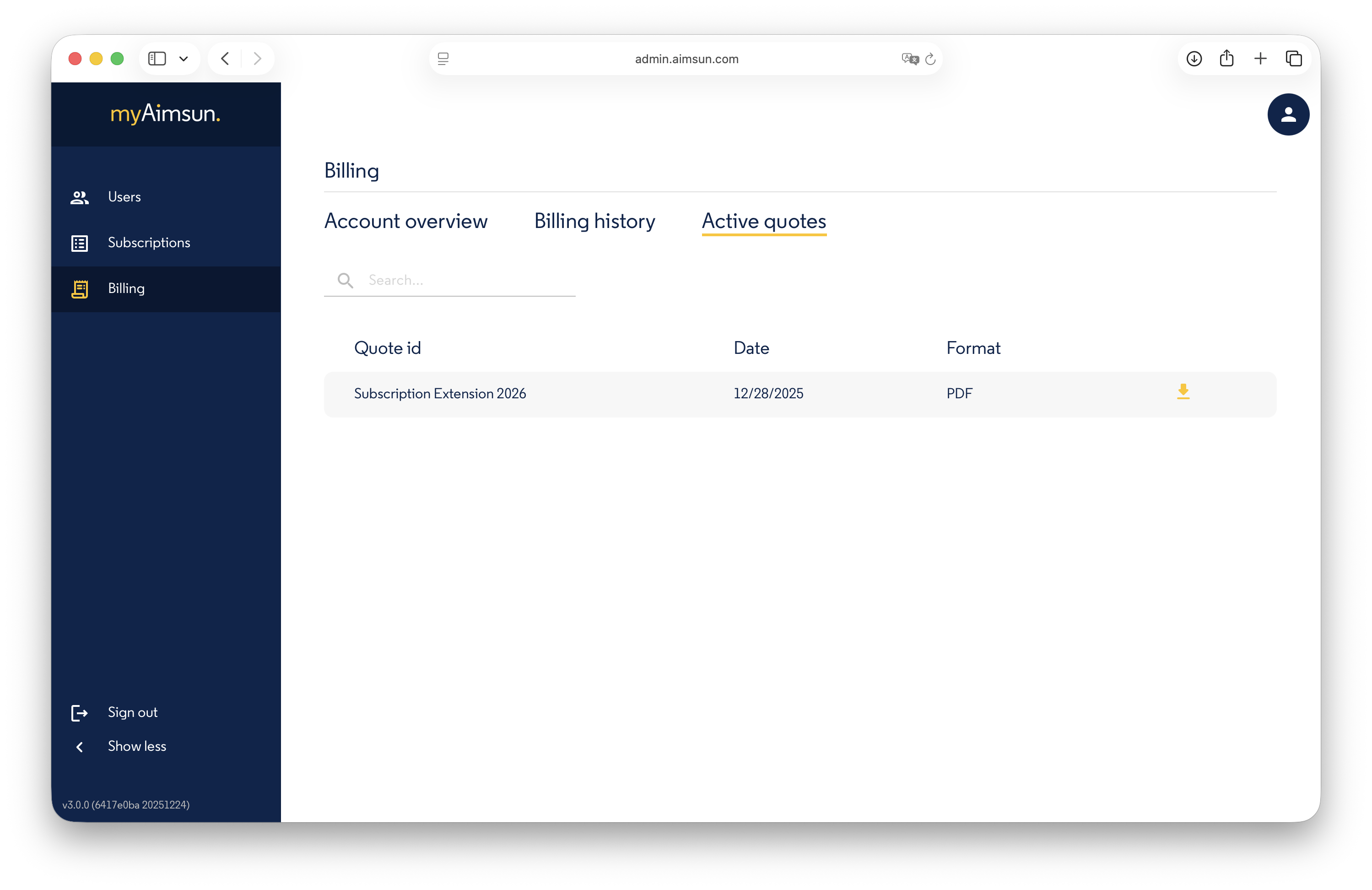
Active Quotes
A list of pending quotes (not yet accepted or rejected), downloadable as PDF documents.
Grants
The Grants page lets a designated Super Admin delegate admin authority over accounts inside their corporate hierarchy without contacting Aimsun for every change.
To become a Super Admin, contact Aimsun staff at info@aimsun.com — only Aimsun staff can promote a contact to Super Admin. Once promoted, that contact sees the Grants page in the sidebar and can grant or revoke admin scope for any contact and any account inside their corporate hierarchy without further involvement from Aimsun.
A grant attaches a contact (the future Admin) to an account (the scope they will administer). Once granted, the contact's Admin sidebar — Users, Subscriptions, Billing — also covers that account.
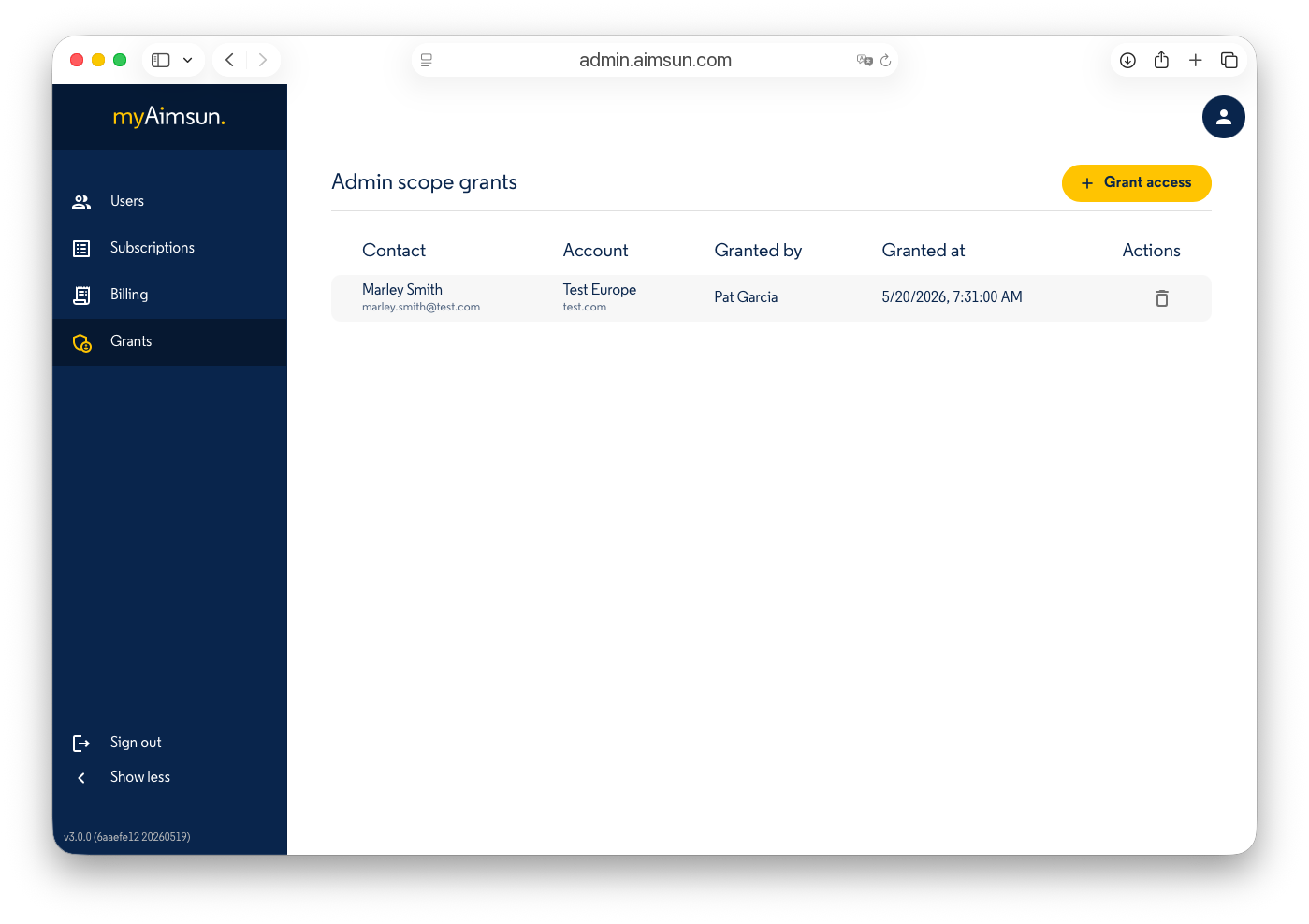
Grant access to an account
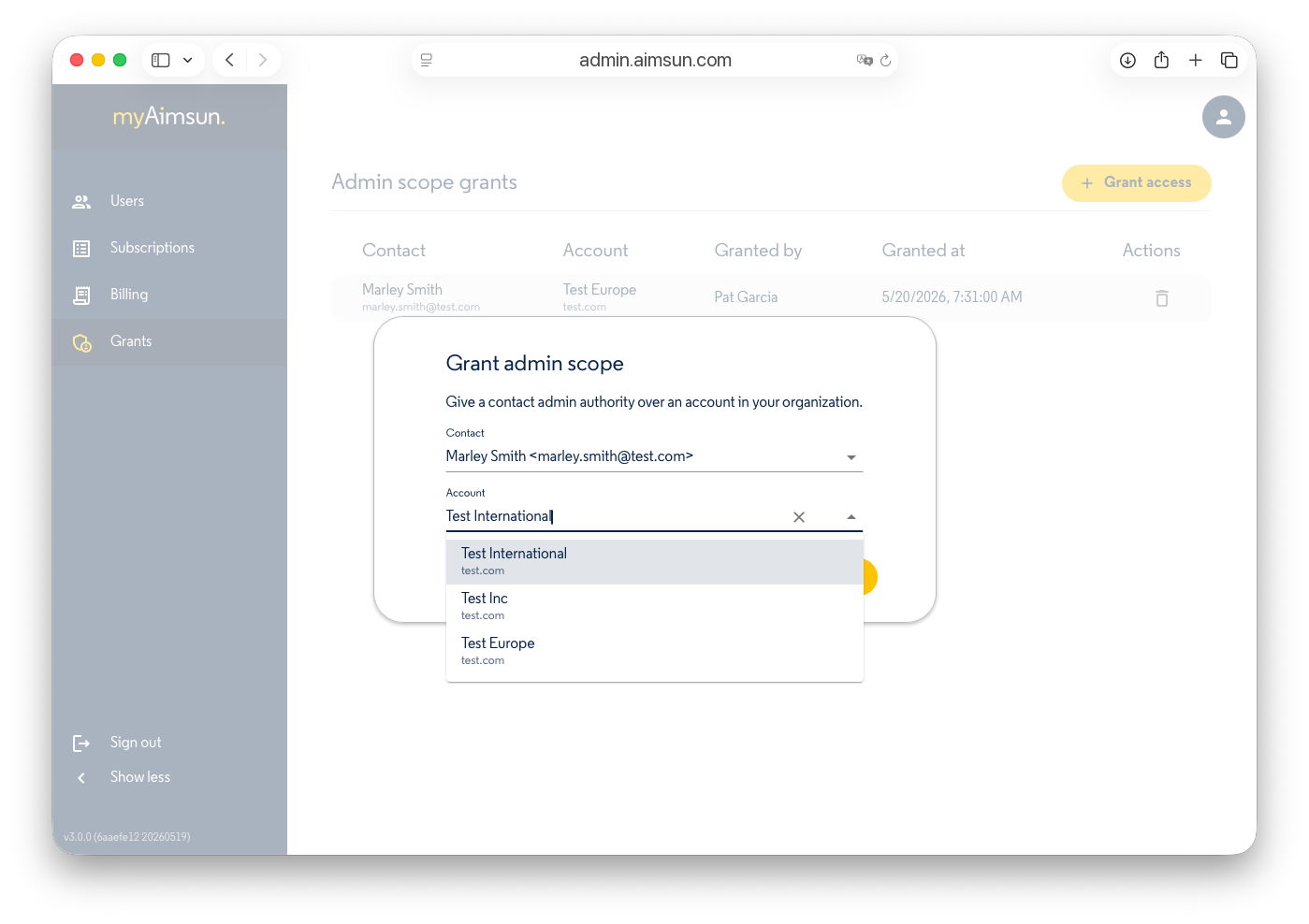
Click Grant access to open the dialog. Pick:
- Contact — any active contact inside your corporate hierarchy.
- Account — any account inside your corporate hierarchy.
Both choices are restricted to the accounts that share the same Salesforce ParentId root as your own account. Cross-organization grants remain Aimsun-staff-only and must be requested via support.
Revoke a grant
Each row has a delete icon. Revoking is reversible — you can re-grant it later from the same page. The change is audited (granted-by and granted-at fields, plus a revoke audit event).